
Strategic Analytics made simple
Turning GA4 and GTM Data into Actionable Charts
Your website is a goldmine of data, but without the right tools, it can feel more like a dusty vault. Google Analytics 4 (GA4) and Google Tag Manager (GTM) collect the crucial Key Performance Indicators (KPIs), but getting them into a format for quick, meaningful analysis and reporting can be a headache.
If your business is on a budget, but your need for analytics isn’t, this is a great way to have a big win for your business, and your budget.
By using some great free/paid tools with your current (hopefully) Google tools such as Analytics and Tag manager. A great new tool you should include in your tools is Rows.com, a spreadsheet creator that connects directly to your data sources.
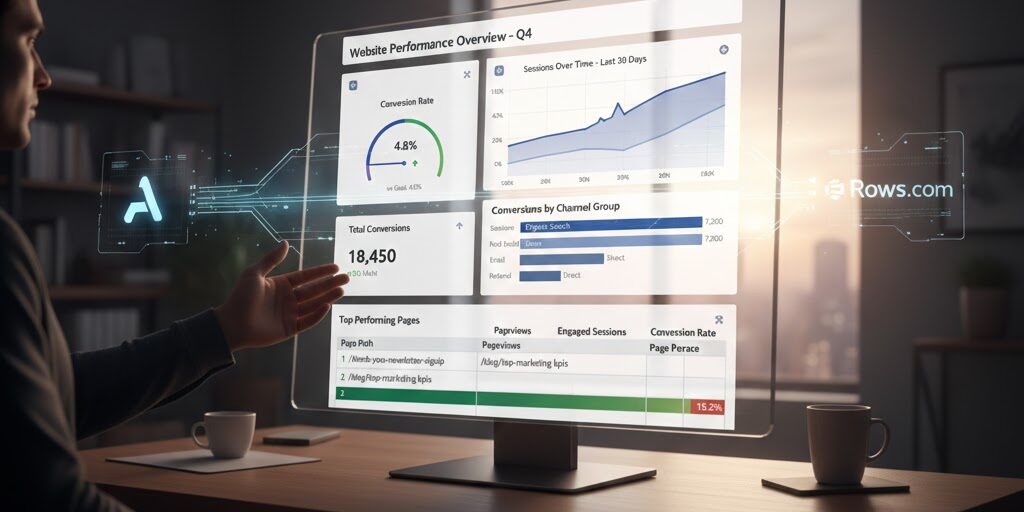
In this post, we'll walk through a powerful, no-code workflow to pull your KPIs from GA4 (and the GTM-fueled events that enrich it), evaluate them in Rows, and build beautiful, shareable charts.
Defining and Capturing Your KPIs with GA4 & GTM
Before you can chart your data, you need to make sure you're tracking the right things.
GA4 is event-based, meaning every user action—from a page view to a purchase—is an event. GTM is your essential deployment tool for managing these events. If you need help setting up your Google Tag manager and setting up a few events, contact us.
The GA4-GTM Synergy
The Google partnership is so connected that smooth transitions between the two create reports that are nothing short of genius and productive for your marketing growth. GA4 is where your data lives and is processed. It tracks your fundamental events automatically via Enhanced Measurements. Events such as page_view, scroll, and first_visit. GTM on the other hand is your main control center for customizing and tracking events that define your necessary KPIs such as a form submission or a download click. GTM’s triggers and event GA4 event tags are used to push your data into your GA4 property.
For example: You would create a custom event trigger in Google Tag Manager to track your newsletter sign ups, this fires a Google Analytics 4 tag. This in turn becomes the metric you use in GA4.
Now that you have relevant information, you need to have a way to put it in a format where you can read it, manipulate it, and put it in charts.
Retrieving Your KPI Data with Rows.com
Now let’s get started with Rows.com by treating your favorite tools as spreadsheet functions seamlessly connecting your GA4 data. This is a much easier way to pull specific data than navigating the native GA4 interface for exports. Let’s look at this step-by-step.
Step 1: Connect Rows to Your GA4 Account
- In your Rows spreadsheet, type = and start typing GOOGLE_ANALYTICS_4.
- Select the relevant function, like GOOGLE_ANALYTICS_4.GET_REPORT().
- You'll be prompted to connect your Google Account. Grant access to your Google Analytics data.
Step 2: Querying Your KPI Data
The beauty of Rows is the ability to easily construct your query. Unlike a manual export, you define the exact Dimensions (how you slice your data, e.g., Date, Page Path, Channel Group) and Metrics (your KPIs, e.g., Engaged Sessions, Conversions, Event Count) you need.
| Formula Component | Value/Selection | Description |
| Property_ID | GA4-XXXXXX | Your GA4 Measurement ID. |
| Start_Date | "30 days ago" | A dynamic date range. |
| End_Date | "today" | The current date. |
| Metrics | ["sessions", "conversions"] | The KPIs you want to track. |
| Dimensions | ["date"] | Slicing the data by date. |
| Conversion_Event | "purchase" | (Optional) Filter for a specific event. |
You'll see a small table appear in your spreadsheet, populated with live data from GA4. Set this table to automatically refresh daily, providing a perpetually up-to-date report.
Evaluating, Manipulating and Visualizing Your KPIs
Now your data is in a flexible spreadsheet environment. You can clean, calculate, and transform your raw data into insightful visualizations. Some uses for this information doesn’t stop at knowing what successes and not-so successes you had with your current marketing but possible new product lines, price points, and demographics.
Performing Calculations and Evaluation
Now you can take strategy to a whole new level by combining metrics.
For example, your Conversion Rate is a much more telling KPI than just the raw number of conversions.
If your Rows data table is in cells A1:C31:
| KPI Calculation | Formula Example | Description |
| Conversion Rate | =C2/B2 | Conversions (Col C) divided by Sessions (Col B) on a given row. |
| Percentage Change | =(C2-C3)/C3 | Compare today's conversions to yesterday's. |
| Conditional Formatting | Built-in feature | Highlight cells red/green based on a defined KPI goal. |
Creating Useful Charts
Rows offers intuitive charting capabilities directly from your spreadsheet data. Select your calculated data—for instance, the Date column and your new Conversion Rate column—and insert a chart. These charts can be embedded into your Google sheets (automatically, but takes some coding).
What we learned
By strategically using GTM to define and deploy your KPI-related events, retrieving that rich data with the powerful GA4 connector in Rows.com, and using the spreadsheet environment for easy calculation and charting, you move past manual data exports. You gain a powerful, automated, and easily shareable way to monitor the metrics that matter most to your business.
Recommendation
I would like to thank the people at rows.com for putting up such great tutorials. Most of what you read today came from my notes used to set up content for my own clients. I started years ago with just Google Analytics and as the years progressed Google has consistently made marketing strategy easier and less time consuming. I use the paid version for myself and my clients, but you can try the free version. The paid version is so affordable though, I would just jump right in.
P.S. Since the writing of this article, Rows.com has started to perfect its own AI. Can’t wait to start using it.
Strategic Analytics made simple Read More »